How to Back Up Your Website Data Regularly in cPanel
We'll show you how to back up the data on your site or blog so you're protected from the unexpected, such as viruses or hackers.

Web Design Jakarta - Once the web design process is fully complete, you need to keep adding quality content to win more potential customers. Unfortunately, we usually pay attention to web design only at the start; once we begin adding content, we tend to forget about it. It's a good idea to ask your web design vendor to teach you how to back up your data, so you're protected if something goes wrong. A heavy attack on your server can sometimes wipe out all your data. (online marketing)
That's where backups prove their worth. If you've asked your web design vendor to back up your data to a backup server, you can easily recover it from there when the main server has a problem. Ask your web design vendor to run backups regularly, at least once a month, to prevent bigger losses if your hosting server runs into trouble. Don't worry, though: here's how to back up your website, blog or site yourself.
- Log in to your site's cPanel and look for the icon called Backup Wizard
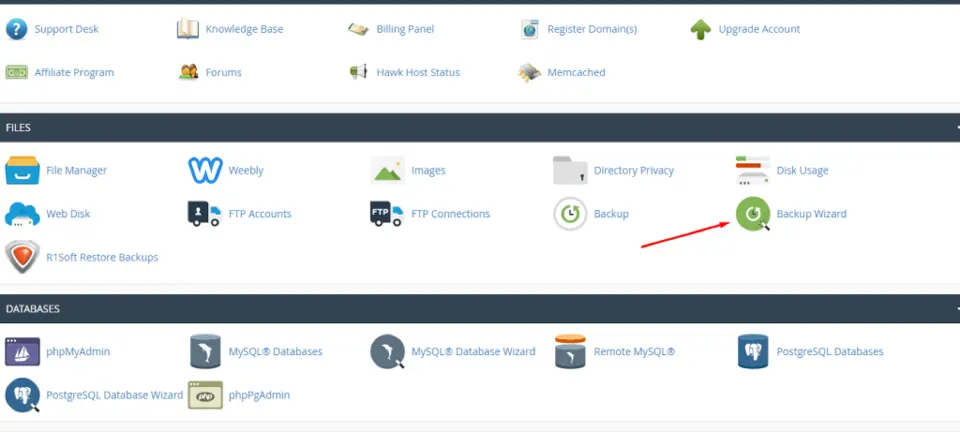
Click Backup Wizard (marked in red) to open the Backup Wizard page.
- Then click Backup
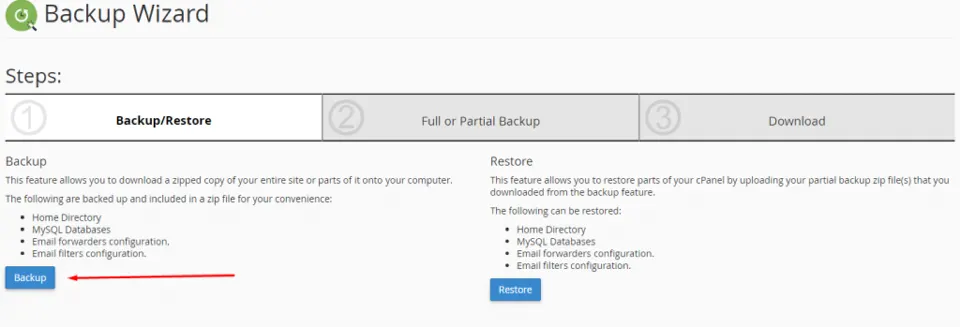
After you click Backup, you'll see two options: full backup and partial backup. We recommend a full backup, because it backs up all the data on your hosting.
- You'll see a screen like the one below with the full backup and partial backup options; the partial backup has 3 parts: Home Directory, MySQL Databases, and Email Forwarders & Filters
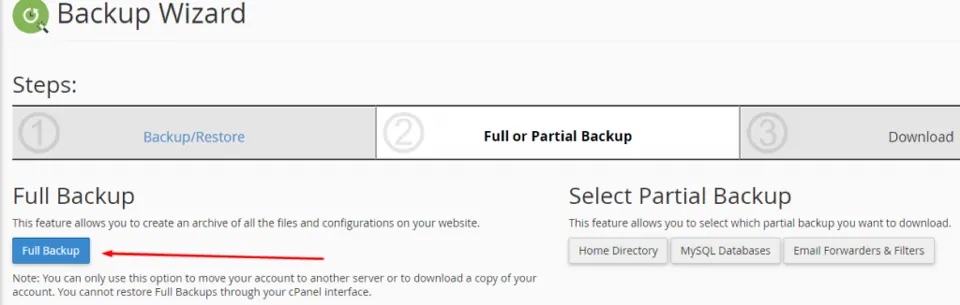
- Choose where the backup file should go (just leave the default)
Once you've chosen where to save the backup, click Generate Backup.
- The backup will now run. Wait until it finishes, then click Go Back.

- This is the final step: you'll see your backup listed as shown below.
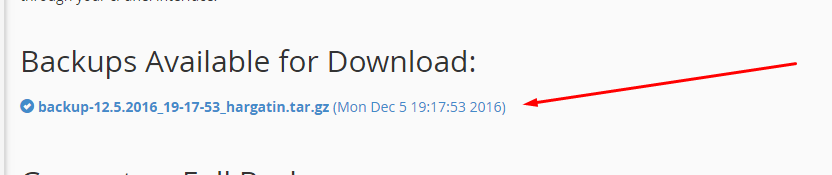
Click the item marked in red and it will be saved to your PC automatically. You can restore the backup on your computer, like the file in the picture above, from the same menu.
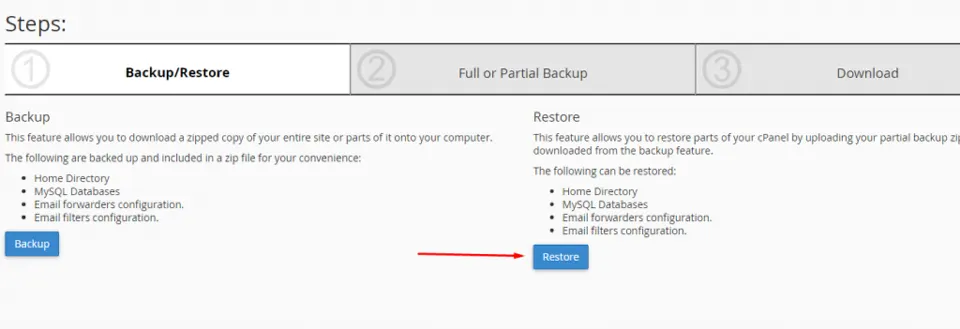
We'll cover restoring in a separate tutorial on how to restore data on your hosting. We hope you find this useful.